 Auto Car Deal us
Related Articles


Bluetooth Not Connecting to Car
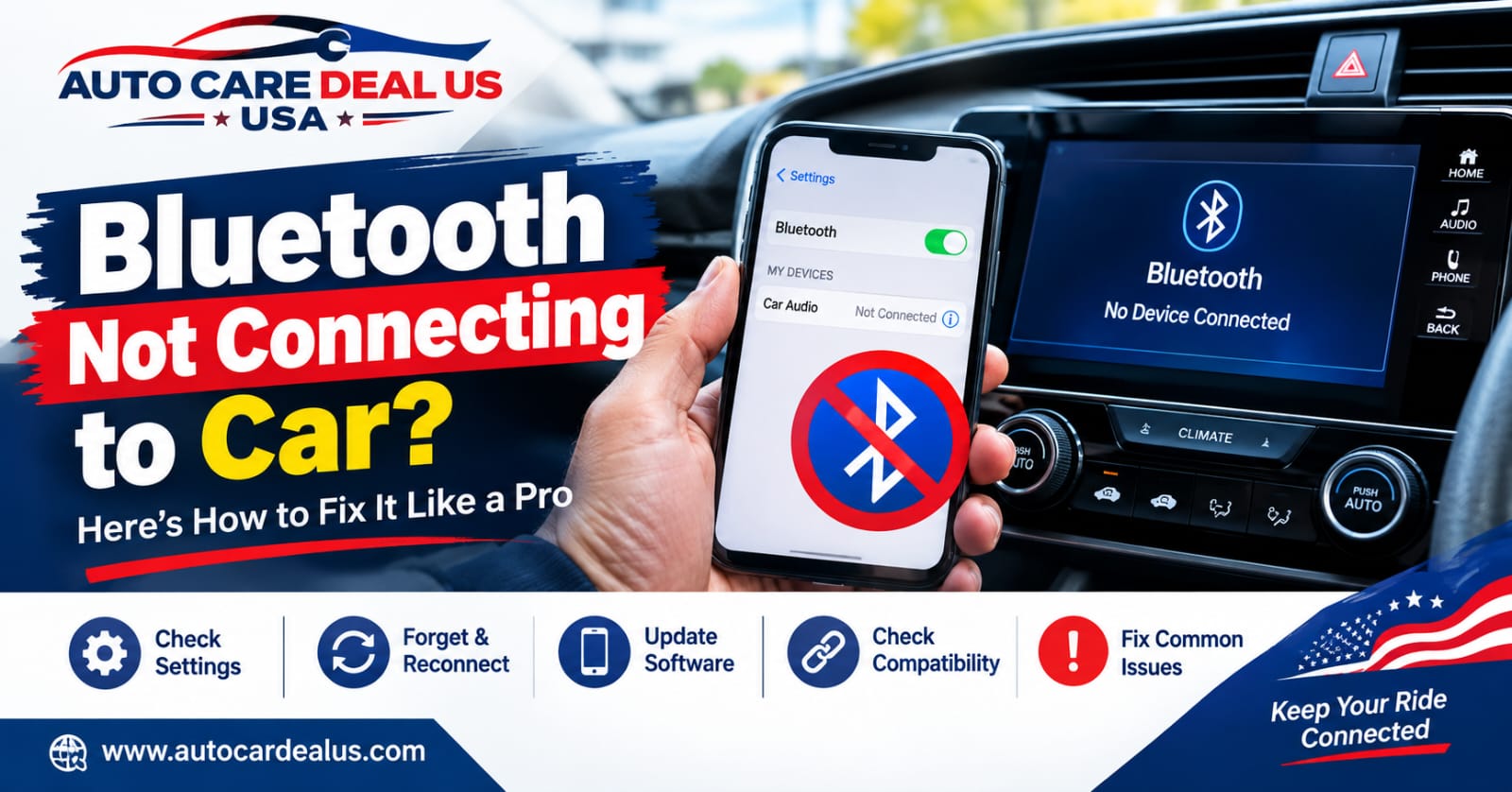
Bluetooth technology makes driving more convenient by connecting smartphones with modern vehicle infotainment systems. However, Bluetooth Not Connecting To car in New York / USA is a common problem for many drivers. Connection failures can affect hands-free calling, music streaming, navigation, and other important features. Several factors may cause Bluetooth pairing problems, including outdated software, incorrect settings, device compatibility issues, or saved connection errors. This guide from Auto Car Deal US explains the common causes and practical solutions for restoring a reliable wireless connection.Bluetooth Not Connecting to Car
1. Check Whether Bluetooth Is Turned On Bluetooth Not Connecting to Car
The first step is checking whether Bluetooth is enabled correctly. Open your smartphone settings and confirm that the Bluetooth feature is active. Also, check your vehicle’s infotainment system and enable wireless connectivity if necessary. Some vehicles automatically disable Bluetooth under certain conditions. Make sure airplane mode is turned off because it may interrupt wireless connections. Keeping both devices discover able can also improve the pairing process. A simple Bluetooth restart often solves temporary connection problems quickly and safely.Bluetooth Not Connecting to Car
2. Restart Your Phone and Vehicle System
Restarting both devices can remove temporary software errors affecting connectivity. Turn off your smartphone completely and wait for several seconds. Then restart the device and activate Bluetooth again. You should also restart your car’s infotainment system when possible. Some systems require turning the vehicle completely off before restarting. Temporary memory problems can prevent successful device pairing between smartphones and vehicles. After restarting everything, try connecting your phone through the Bluetooth settings menu again.
3. Remove Old Bluetooth Pairing Connections
Saved Bluetooth connections sometimes create conflicts with newer devices. Your car may already contain several previously connected smartphones. Remove unused phones from the vehicle’s paired device list. Then open your smartphone settings and forget the existing car connection. This process removes damaged connection information from both devices. After deleting old records, begin the pairing process again. Fresh pairing can solve authentication problems and improve communication between your smartphone and the vehicle infotainment system.
4. Put Your Car Into Pairing Mode Bluetooth Not Connecting to Car
Many drivers experience problems because their vehicle is not discover able. Open the infotainment screen and locate the Bluetooth connection settings. Select the option for adding or pairing a new device. Your vehicle should then become visible to nearby smartphones. Search for available devices using your phone’s Bluetooth menu. Select your vehicle’s name when it appears on the screen. Confirm that the pairing code matches on both devices. Accept the connection request to complete the wireless pairing process successfully.
5. Check Your Smartphone Software Version
Outdated smartphone software can sometimes cause Bluetooth compatibility problems. Phone manufacturers regularly release updates that improve wireless connectivity and security. Check your device settings for available operating system updates. Install updates when your smartphone manufacturer recommends them. Updated software may fix bugs affecting audio streaming or hands-free calls. You should also update compatible vehicle infotainment software when recommended by manufacturers. Keeping both systems current can improve device compatibility and connection reliability.
6. Make Sure Your Devices Are Compatible
Older vehicle systems may have limited compatibility with newer smartphones. Different Bluetooth versions can sometimes affect available features and connection stability. Check your vehicle owner’s manual for supported smartphone requirements. Some infotainment systems support calling but not wireless music streaming. Others may require specific applications for navigation or media functions. Compatibility information helps drivers understand which Bluetooth features should work correctly. Auto Car Deal US recommends checking manufacturer guidance before assuming your smartphone has a hardware problem.
7. Reset Network and Bluetooth Settings
If normal troubleshooting does not solve the problem, reset network settings. Most smartphones provide an option for resetting wireless and connection preferences. This process may remove saved Wi-Fi networks and Bluetooth devices. Therefore, save important connection information before performing the reset. After resetting, restart your smartphone and activate Bluetooth again. Pair your phone with the vehicle as a completely new device. This method can remove hidden configuration errors causing repeated connection failures and pairing difficulties.
8. Reduce Interference From Other Wireless Devices
Too many connected devices can sometimes interfere with Bluetooth communication. Disconnect unnecessary wireless accessories before pairing your smartphone with the car. Smartwatches, earbuds, speakers, and other devices may automatically connect first. Temporarily disable Bluetooth connections on nearby accessories if problems continue. Keep your smartphone reasonably close to the infotainment system during pairing. Physical distance and electronic interference may weaken wireless signals. Reducing unnecessary connections can create a more stable communication environment for successful Bluetooth pairing.
9. Check Car Battery and Infotainment Performance
Electrical problems can occasionally affect your vehicle’s electronic systems. A weak car battery may cause unusual behavior in screens and accessories. Watch for slow infotainment startup or unexpected system restarts. These symptoms may indicate electrical or software-related problems. Have your vehicle inspected if multiple electronic features stop working. Modern cars depend heavily on electronic control systems and stable power. Solving underlying electrical problems may restore proper Bluetooth, audio, navigation, and smartphone connectivity functions.
10. Visit a Professional Service Center
If troubleshooting does not restore the connection, professional assistance may help. A qualified technician can inspect the infotainment system and related electronics. They can check for software updates, damaged components, or system configuration problems. Dealership service departments may also provide manufacturer-specific diagnostic support. Professional testing is especially useful when several smartphones cannot connect. Reliable smartphone integration improves communication and entertainment while driving. Auto Car Deal US encourages drivers to address persistent connectivity problems before relying on hands-free vehicle features.
Frequently Asked Questions
How do I fix Bluetooth connection problems in my car?
Restart your phone and infotainment system, then delete old pairing records. Pair both devices again and check for available software updates.
What causes Bluetooth problems between a phone and car?
Common causes include outdated software, incorrect settings, compatibility problems, interference, and corrupted pairing information stored on either device.
